

Author: Samineh Yazarloo, Qom, Iran 🇮🇷, Farsi, wa.me/989120291871
What is a meeting?
A meeting is an online session attended by various individuals with a common goal and a specific topic , aimed at personal and character growth.
Our meetings on business topics are ongoing to foster communication between individuals worldwide.
One way we can elevate our business knowledge and be seen is by participating in business meetings.
Being seen, building a brand, and gaining recognition are important factors in increasing customers and, consequently, sales, and play a crucial role in building customer trust.
Therefore, we should be willing to take advantage of these potentials and capacities wherever there is a trace of the path to becoming a recognized brand.
By creating consecutive business meetings throughout the day, Arad provides opportunities for merchants to act towards being seen and becoming known, allowing them to reach more customers daily through networking across the globe.
Now, a question that may intrigue the reader is how to participate in these meetings and how to join them?
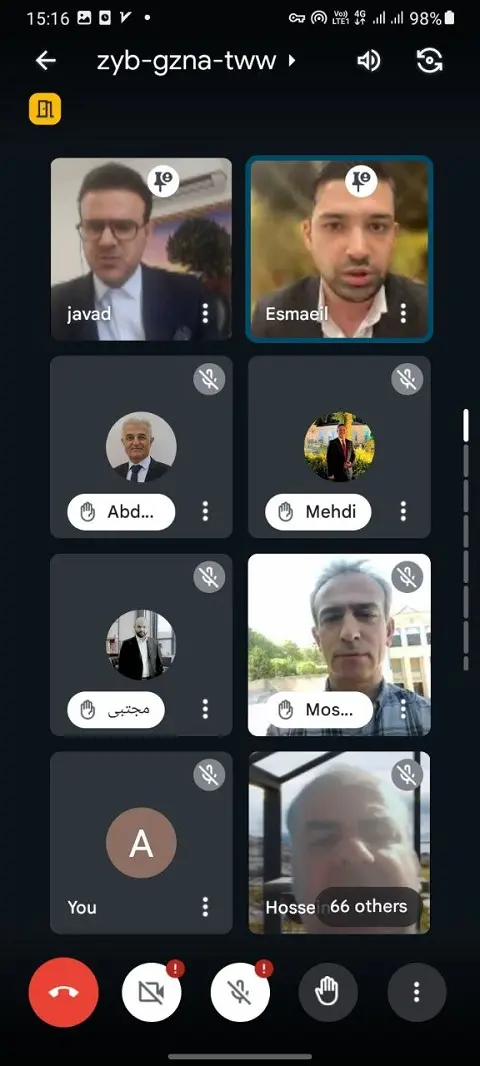
How can I join a meeting and where is the meeting link located?
When you enter the Arad website, there is an option in the top menu called "Meeting," where the schedule of daily meetings is posted on the site and regularly updated.
Throughout the day, numerous domestic and export meetings are continuously held from 10 am to 12 midnight, allowing dear merchants to participate based on the meeting's topic.
In the table displayed on the website, the meeting topic, schedule, and link are provided, enabling merchants to click on the link and join the meeting.
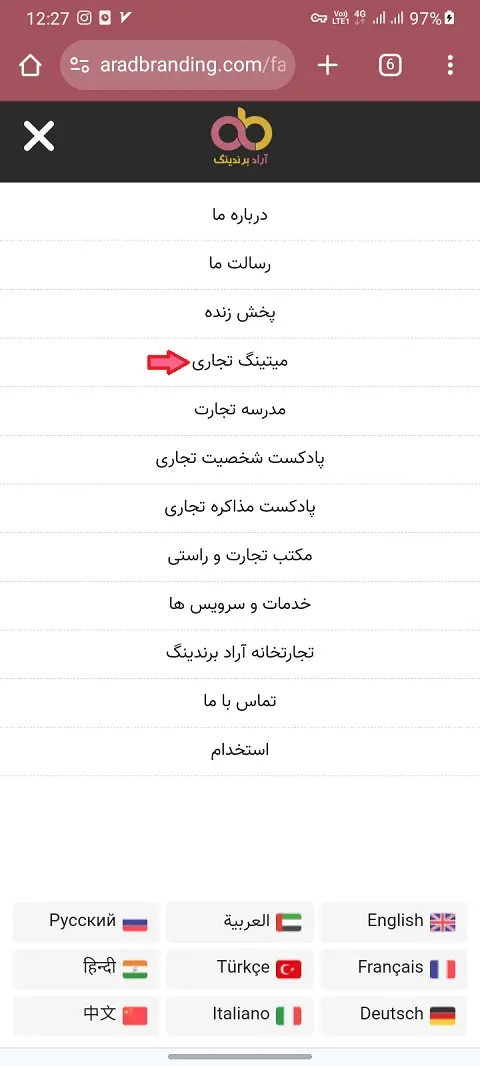
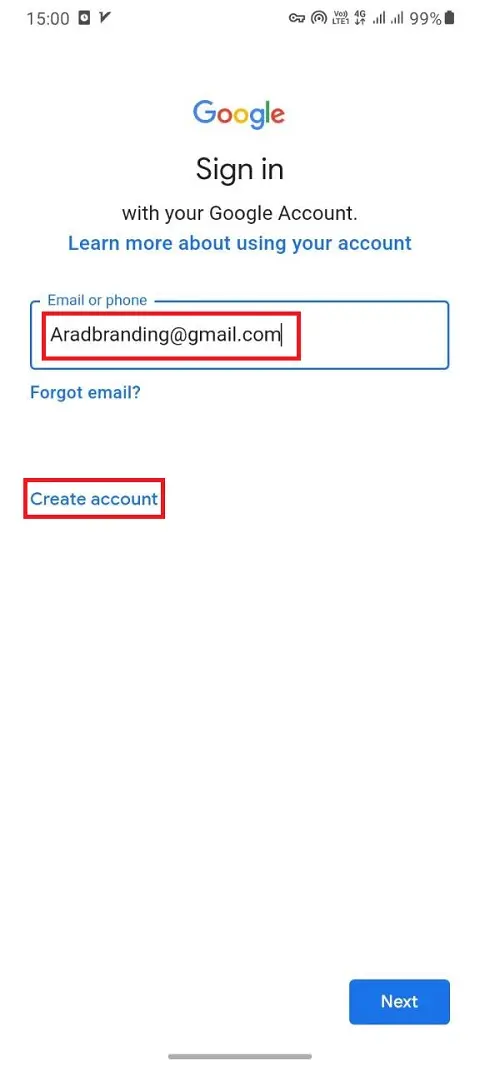
Entering Gmail on Google Chrome
Please note that to join the meeting, it is necessary for your mobile phone, laptop, or home computer to be connected to Gmail.
By clicking the link, you will be directed to the meeting login page.
One of the reasons you may not be able to join the meeting is the lack of connection to Gmail.
Some individuals may not have a Gmail account.
So, first, you need to create a Gmail account for yourself and establish access on your system.
Next, ensure that your Gmail account for joining the meeting is in your name, and if your current Gmail account is under an unrelated name, create a new Gmail account in your own name so that other participants can recognize you by your actual name when entering the meeting.
Another important parameter is to select a photo for your Gmail profile and upload an official picture of yourself. If the image display option is not available to you, the photo you upload will be shown on your profile.
All the elements discussed are crucial parameters in building trust and recognition.
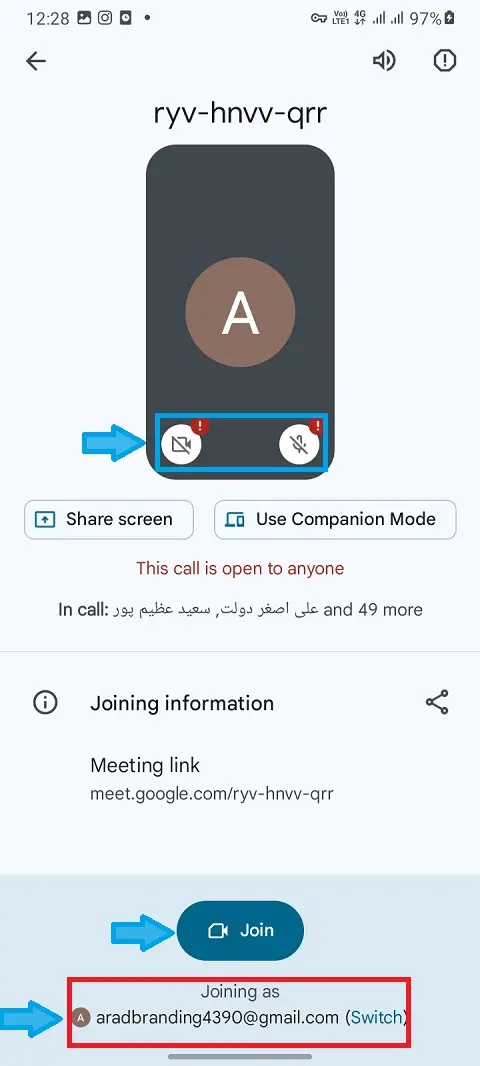
Adjusting sound and camera when entering a meeting
Now that the link has been selected, when the meeting login page is displayed, there is a section that asks you about access to sound and image.
Mute the sound when entering the meeting.
If you have video call conditions, leave your camera open; otherwise, mute the camera option as well.
In the next step, select the 'Join' option to be transferred to the main meeting page.
This way, you can enter the meeting.
It is worth mentioning that in the school of business and integrity and actually in lesson number 46 entitled "How to use Google Meet for online business meetings," the use of Google Meet for joining meetings is taught in a video format that dear merchants can watch.
Now, even after doing these things, you may encounter problems when entering the meeting and see various messages on the screen.
Software factors preventing entry to the meeting
- Failure to connect to Gmail
- Outdated Google Meet software on mobile phone
- Mobile phone software issue
- Meeting capacity reached
Option 1 is explained in the initial text.
In this case, you need to adjust the link execution program on Google Chrome browser to resolve the issue.
Moreover, the expiration of Google Meet also hinders your entry into the program. In this case, the solution is to update the Google Meet software through Google Play Store or Bazaar for Android phones, which will be applied to your system.
Sometimes, even after performing these tasks, when selecting the meeting link, you may still not be able to enter and receive a message of failure to enter.
The solution here is to copy the meeting link and paste it in the address bar of the website and press the Enter button.
Many times, you will see that this simple action resolves your entry issue.
Sometimes we have all the conditions ready, but still can't get in.
Here, use another phone or system to enter and do the tasks to see if the problem persists with another system or not.
It has been experienced that changing the system solves the problem, and the reason for the entry issue was a problem with the settings on the first phone, which later needs to be addressed by visiting relevant service centers to resolve the issue.
In the fourth section, the reason for not entering the meeting may be the meeting capacity being reached.
The daily capacity for meetings is 100 people, while the capacity for Mr. Talia's and other instructors' meetings is 1000 people, and it is possible that the meeting capacity is reached at the time of entry, and you cannot get in.
Therefore, it is necessary to always enter the session earlier than the meeting time.